 Zombiv
How to Make an AI Zombie Drama Video From Two Photos
Cast the Survivor and Zombie, upload two authorized photos, and choose Standard 480p (1 Credit) or HD 720p (2 Credits) for your story video. Check current availability in the Generator.
Last updated: 2026-10-21
Zombiv uses two authorized adult reference photos to generate a new fictional AI story video from scratch using a predefined story template. The server uses the fixed, versioned Zombie Love Story template: Photo 1 = Survivor; Photo 2 = Zombie. Zombiv does not place a user’s face into an existing or user-uploaded target video. Users cannot upload a target video for face replacement and cannot enter arbitrary real-person prompts.
What you are making
A Zombie Love Story is a short fictional drama: a Survivor recognizes a loved one who has become a Zombie, hesitates, embraces them, and remembers a warmer life together. You supply the two character photos. The story instructions are already set, so you do not need to write a prompt or assemble individual shots.
Creation requests a vertical 9:16 MP4 of about 12 seconds with native audio. Choose Standard 480p (1 Credit per request) or HD 720p (2 Credits per request). Check the Generator for currently confirmed quality and service availability. Photos are checked automatically before generation; if a photo cannot be confidently assessed or does not pass, the app asks you to replace it. Outputs that do not pass checks are not delivered, and Prompt Sift may independently hold a prompt. Processing times vary; there is no guaranteed completion time or exact likeness promise. The separately labelled homepage sample was generated at 720p for demonstration. You can choose HD 720p for the same resolution tier or Standard 480p to use fewer Credits; the sample does not guarantee your result. Actual output dimensions may vary.
1. Choose the Survivor and the Zombie
Photo 1 is the Survivor: the person who recognizes their loved one and chooses to embrace them. Photo 2 is the Zombie: that loved one, shown with fictional zombie styling. Assign these roles before selecting files. These are character references for the whole film, not a starting frame and an ending frame.
The two reference portraits shown with our sample make the role order easy to see. Both are single-person portraits with visible faces and even lighting. AI can still change a face, clothing, movement or scene continuity. A clean input gives the model useful information; it cannot guarantee the outcome.
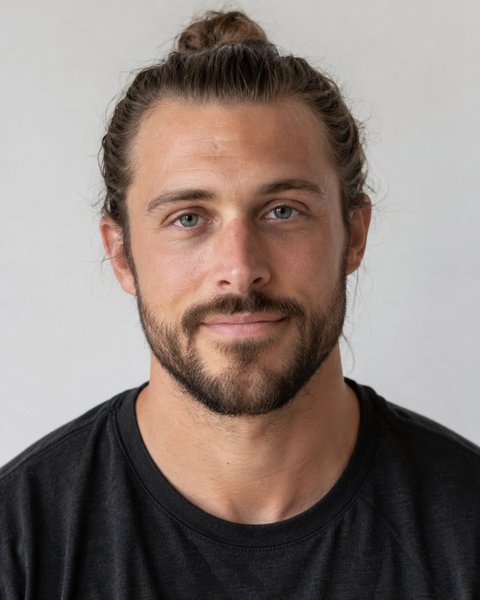

Use only authorized adult portraits. You must be 18 or older and have permission from both adults to create this synthetic story. Do not upload celebrity impersonations, deceptive material, or prohibited content. Read Acceptable Use and the photo selection guide before choosing a difficult image.
2. Select and upload both photos
Open the Generator. Choose the Survivor photo in the first card and the Zombie photo in the second. JPG, PNG and WebP are accepted, up to 10 MB each. The actual file is checked, not just its extension. Images need at least 300 pixels on each side; very narrow or wide images and images above 40 million pixels are rejected.
Selection initially shows a local preview. Selected on this device is different from Uploaded and verified. Sign in using the existing account flow, confirm photo permission, and upload. The app checks the actual image, normalizes it, removes EXIF metadata, and stores the validated input privately. If an upload fails, follow the displayed error and reselect a valid original rather than repeatedly submitting.
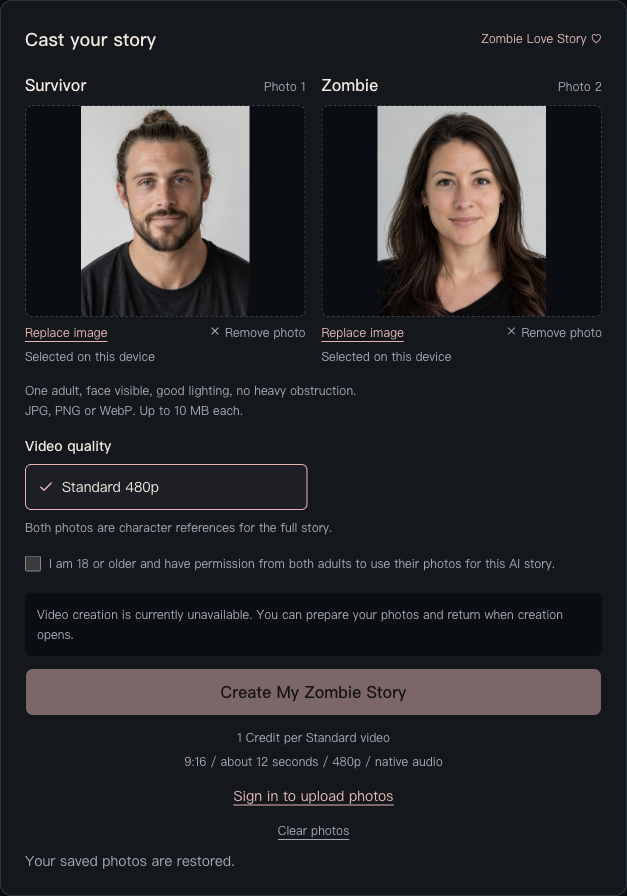
A browser draft can help restore your selection, but it is not a permanent backup. Device drafts and uploaded inputs have a 24-hour validity window. Keep your originals available, especially if you continue later or switch devices.
3. Check your Credits and submit the story
Standard 480p uses 1 Credit per request; HD 720p uses 2 Credits per request. The pricing page lists the current one-time packages from the checkout catalog. Purchased Credits do not expire. Applicable taxes are shown at checkout; there is no subscription.
If you need Credits, use the existing purchase action and return to your pending request. A checkout return screen alone does not prove payment or grant Credits: the verified payment notification updates your order and balance. If a payment is pending, check it before attempting another purchase. Never submit card details to support.
Confirm the roles, permission, selected resolution and Credit cost, then use the generation action. Avoid changing the photos while a purchase or creation request is in progress: the request is bound to that exact photo pair. Service-side availability checks continue to apply; selecting a photo cannot bypass them.
4. Follow processing and checks in My Creations
Open My Creations to follow the task. Photos are checked automatically before generation; uncertain or unapproved photos must be replaced. The generated MP4 is checked before delivery, and outputs that do not pass are withheld. Prompt Sift may independently hold a prompt. A queued or delayed task is not automatically a failed task, and another paid attempt is not submitted silently to replace it.
When a confirmed failure, blocked result, or final storage/delivery failure prevents delivery, the eligible generation Credit is returned once, linked to its original consumption. A returned Credit is different from money refunded to your card. Read the Refund Policy for purchase-related requests and use account support if the task or order needs investigation.
5. Watch, download and share
Once delivered, open the creation and play the full video. Sound requires playback; the app does not autoplay it with sound. Inspect the faces, role order, zombie styling, transition and audio before sharing. The sample is an example of one result, not a promise that every photo pair will behave the same way.
Use Download MP4 to save your copy. Videos remain available in the service for 30 days, so download before the displayed expiration. The app does not post to TikTok, Instagram Reels or YouTube Shorts for you. Follow each platform's rules, keep permission from the people shown, and identify synthetic content where required.
Privacy, deletion and help
Uploaded photos and ordinary creations are private and require account ownership to access. Clear photos to revoke a draft's active inputs; delete a creation to remove access and schedule media cleanup. Physical deletion is asynchronous, and providers can retain copies under separate policies. Do not confuse our input validity window with a promise that every provider copy disappears in 24 hours.
Account deletion is requested through support; there is no self-service account deletion button. Financial and security records may need to remain. See Privacy for the full retention distinction.
For a problem, use account support or support@zombiv.com, with the order or creation reference and a short description. Do not send passwords, API keys or full card numbers. Ready to cast your story? Return to the Generator. If you need a different plot or shot controls, read Zombiv vs. general AI video tools.
Making this with your partner? The Zombie Couple Video Generator explains how to cast two separate portraits as the Survivor and Zombie.
Where can I inspect a result before starting?
The homepage sample shows one real output and its two reference portraits, with the sample's dimensions, duration and audio information. It is one example, not a full test report or a typical outcome. Use one authorized adult per portrait, not a group photo.